Setting Up Your First Backup? What Each Option Does on the Day You Need It
External drive, sync folder, or dedicated backup service: the differences only show up during a restore, so the comparison worth making is a tested one.
The failures I see most often are not dramatic. A laptop gets left on a train, a drive stops spinning on a Tuesday morning, a phone goes into a sink, or someone clicks a link and finds every document on the machine renamed and unreadable. In each case the household had something they called a backup, and in most cases it was true in the sense that files existed somewhere. What was not true was that the files could be put back, in a usable form, on a replacement machine, within a timeframe that mattered. That gap is the whole subject.
An attached drive is the cheapest option and the easiest one to quietly break
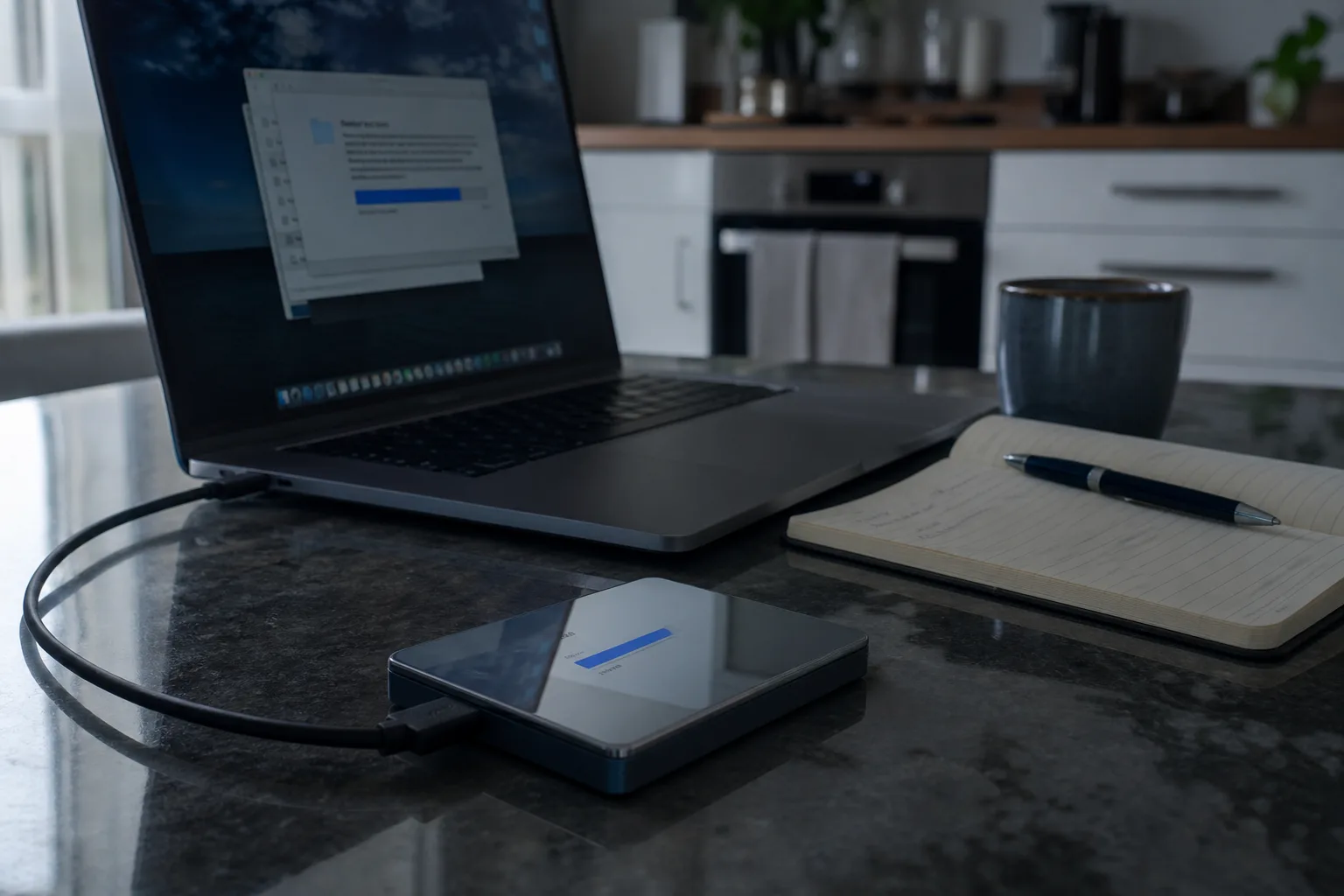
A USB drive plugged into a desktop, with the operating system's own backup tool pointed at it, is the lowest-cost arrangement that genuinely counts as a backup. It is fast to restore from, it does not depend on your internet connection, and it keeps older versions of files if you leave it enough room. The weaknesses are physical and they are the ones first-time users underestimate. The drive sits in the same room as the computer, so a burst pipe, a burglary or a surge takes both. It stays mounted, so ransomware that encrypts the machine will usually reach the backup too. And drives fail silently: the job can report success for months against hardware that will not read back.
Sync is not backup, and the difference shows up as a deletion that follows you
Dropbox, iCloud Drive, OneDrive and Google Drive are mirrors. They are built to make one folder look identical across several devices, which means a change on any device is a change everywhere, including a deletion and including an encryption. People discover this when a family member clears out what looked like clutter, or when a corrupted file overwrites the good copy and the good copy is gone from every machine at once. Most of these services do keep version history and a recycle bin, often for something like a month on consumer plans, which is a real safety net but a short one, and a quiet failure in December may not surface until February. Worth knowing before you rely on it, not after.
A dedicated backup service buys you the thing the other two are missing
Backup services, as opposed to sync services, keep a separate copy that your computer cannot casually overwrite: they retain deleted files for a stated period, they keep multiple versions of each file, and the better ones let you restore to a point in time rather than restoring whatever the current state happens to be. That is the single most useful property on the day something goes wrong, because the problem is almost never that a file vanished and almost always that the wrong version replaced the right one. The trade is cost, a monthly figure per machine, and restore speed, since pulling a large library back down a residential connection can run into days. Many services will ship a drive instead, which is worth checking before you subscribe rather than during the emergency.
The combination most households end up at, and why
What tends to settle out is an attached drive for speed and a remote copy for the fire-flood-theft case, with the sync folder treated as convenience rather than protection. The National Institute of Standards and Technology is responsible for the cybersecurity framework that most organizations use to structure exactly this kind of decision, and the household version of it is unglamorous: more than one copy, at least one of them somewhere else, at least one of them not permanently connected. If you are doing this for the first time, start with the remote copy, because it covers the losses you cannot do anything about, and add the local drive second for the restores you will actually perform.
The test is a restore, and an hour now settles it
Pick a document you know well and restore it, not to its original location but to a new folder, then open it and confirm it is the version you expected. Then restore a whole folder, something with a few hundred megabytes in it, and time how long it takes. Then do the part everyone skips: check that your photos are included, because phone cameras usually store to an account rather than a disk, and a computer backup frequently does not reach them. Note what you would need to log in to the backup itself, and keep that password somewhere other than the machine being backed up. Repeat the restore once a year, or after you replace a computer.
The consequences people trace back to a backup are the obvious ones, the lost thesis or the wiped laptop. The ones they do not trace back are smaller and more common: four hours lost reconstructing an invoice, a tax folder rebuilt from bank statements, a scanned deed that nobody can find when a title question comes up years later. An hour spent proving the restore works is the cheapest hour in the whole arrangement.